How to deploy different type of users in a separate environments, on the same tenant
In earlier versions of the Dynamics 365 Licensing Guide, it was clearly stated that customers may not mix Essentials and Premium users but must license at least one of Essentials or Premium users, not both.
Business Central, licensed by assigned user, is available with Essentials or Premium levels of capabilities. Microsoft released an update to support this change and according to Microsoft Licensing document customers can activate Business Central Essentials and Business Central Premium SaaS subscriptions in separate environments under the same tenant.
However, licensed users can only access the environment for which they are entitled.
If you deploy multiple Business Central environments, you are recommended to control access on each environment using security groups for each environment.
Microsoft Business Central SaaS is supporting Microsoft Entry Security Groups for grouping of BC users, with the ability to only sync certain groups.
One could place the Essentials users in one group and the Premium users in another and then only Premium or Essential users will be sync to environments as mix plans are not supported on same D365 BC SaaS environment.
Please note that D365 BC Admin portal supports nested security groups as one single group can be set as primary security group on each D365 BC SaaS environment.
Note > Using the functionality as described above gives you the opportunity to run on each environment following combinations of D365 BC SaaS subscriptions :
Scenario 1 > D365 BC SaaS environment with Premium/Team Member/External Accountant/Device users.
Scenario 2 > D365 BC SaaS environment with Essential/Team Member/External Accountant/Device users .
Managing users’ access/synchronization process based on Microsoft Entry Security groups:
Synchronization of users on Business Central SaaS environment as per Microsoft policies and business needs, will bring only Essential or only Premium users.
Once synced you only need to setup user permissions according to the internal security policy.
Pre-requisite
To run D365 BC SaaS production environments side by side you should have valid Business Central Cloud login account available.
Activate Dynamic Business Central Essentials and Business Central Premium SaaS subscriptions plus the Environment Add-on under the same Entry ID ( AAD/tenant ID/domain ) .

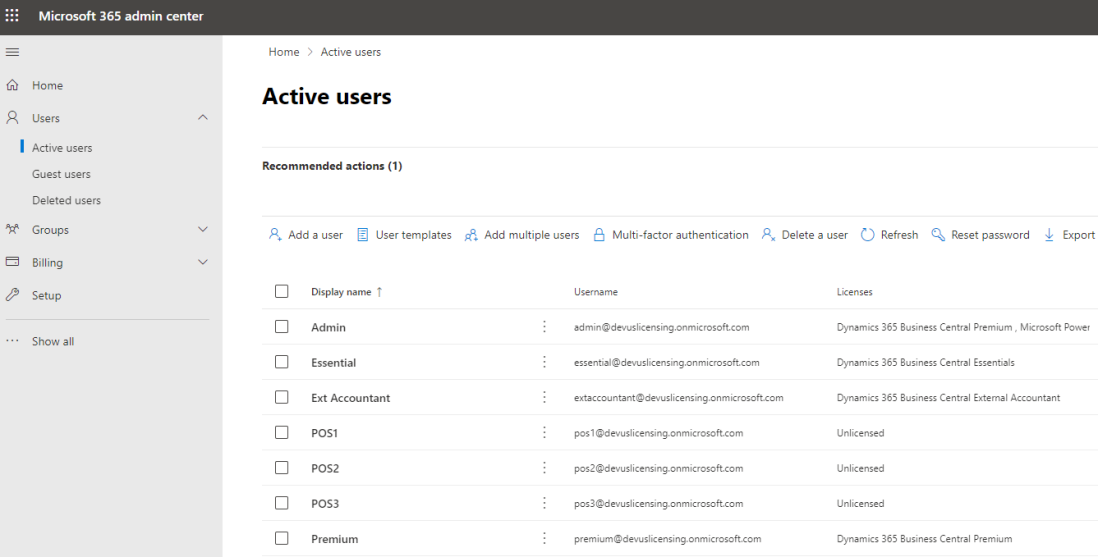
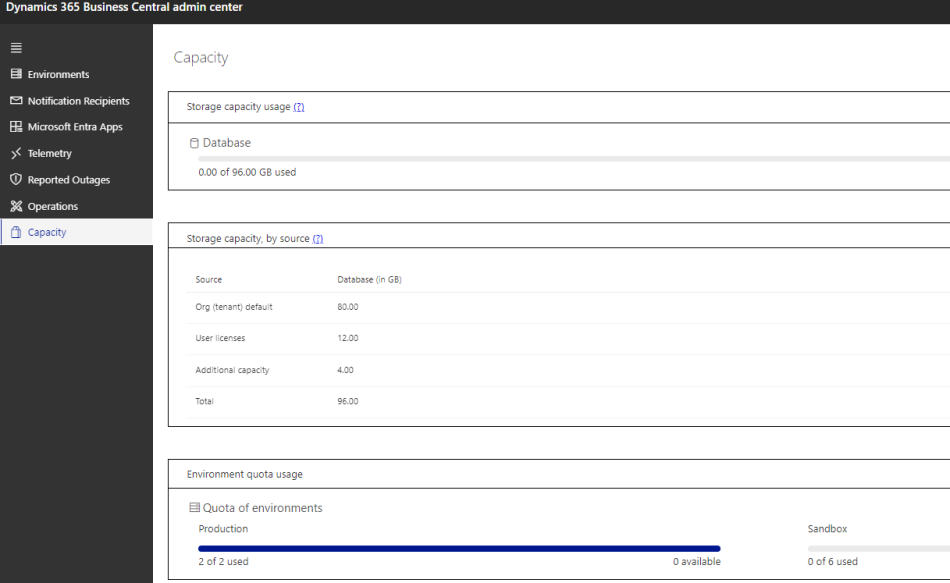
1. Open the Business Central Admin Central using an Admin or Delegated Admin user account.
2. Create two D365 BC SaaS production environments.

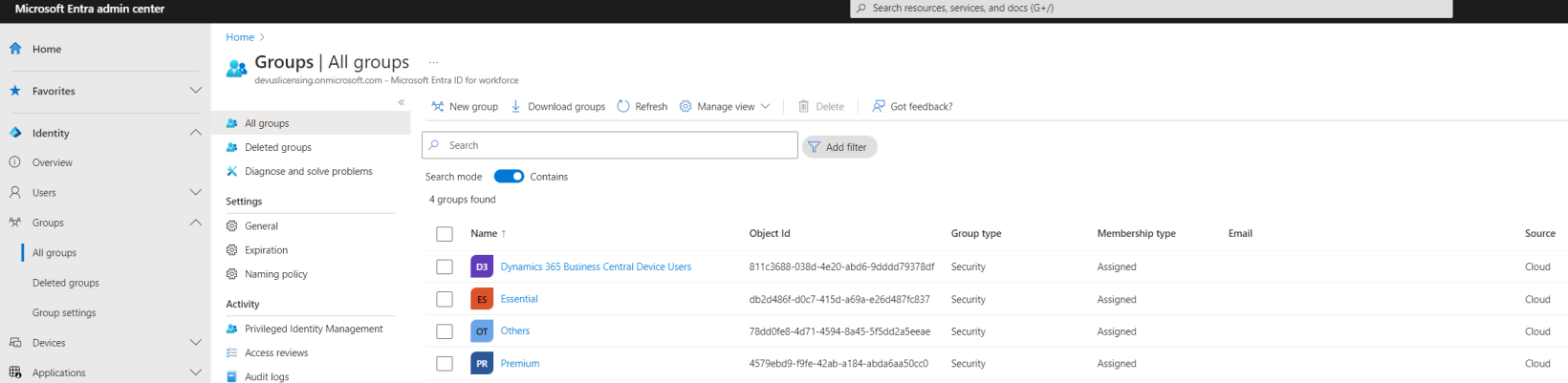
3. Login to Microsoft Entry ID ( AAD portal ) to create Security groups to be added later to D365 BC Admin portal.
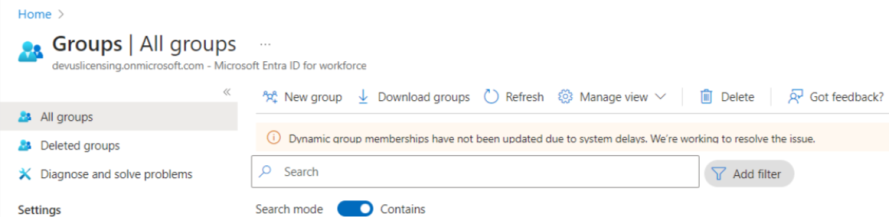
For our scenario, we created multiple Security groups ( Premium/Essential/Device/Others ) under Microsoft Entra admin center.

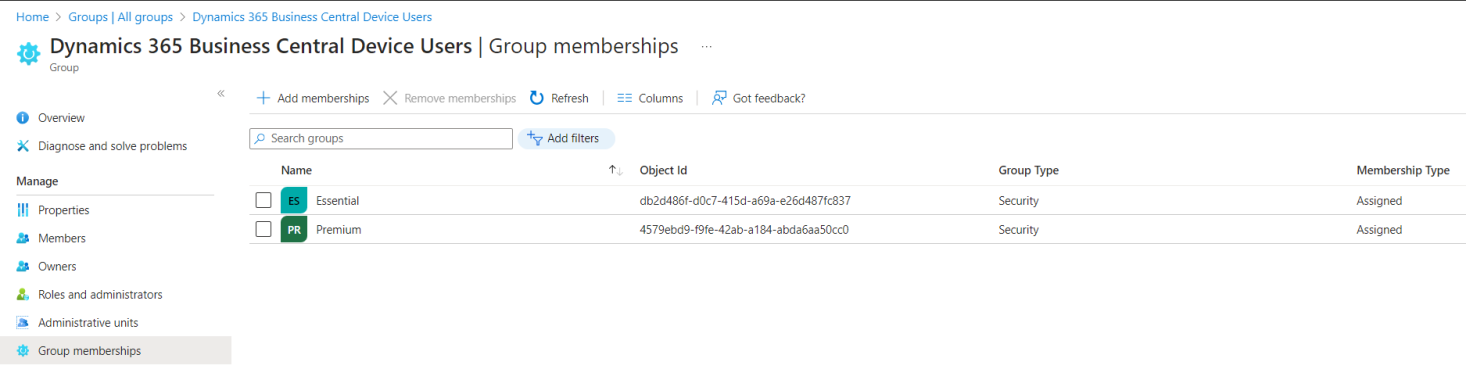
4. You can use nested Entry Security groups as per allowed combination (shared above).
For primary D365 BC SaaS production environment, called “Essential” we’ll set Security Group called “Essential” including Security “Device” subgroup.

For secondary D365 BC SaaS production environment, called “Premium” we’ll set Security Group called “Premium” which includes security “Device” and “Others” subgroups.

5. Once Security groups are set on each D365 BC production environment we can run “Update users from Microsoft 365” to sync the D365 BC SaaS users from Microsoft 365.

User sync process will sync based on Security Group “Essential” on D365 BC SaaS production environment called “Essential” all users active on Essential/Device/Others.
User sync process will sync based on Security Group “Premium” on D365 BC SaaS production environment called “Premium” all users active on Premium/Device/Others.
6. Users’ synchronization process has been completed successfully and now we can setup the User Permission Sets on each environment as per security policies in place.
You can check the user license plan assignment by querying the ?page=9822 on each D365 BC SaaS environment.
https://businesscentral.dynamics.com/de10c273-79aa-4321-a4dd-b35a741f6bf7/Premium?page=9822

Documentation
https://learn.microsoft.com/en-us/dynamics365/business-central/dev-itpro/administration/tenant-admin-center-capacity
https://learn.microsoft.com/en-us/dynamics365/business-central/dev-itpro/administration/tenant-admin-center-environments
https://learn.microsoft.com/en-us/dynamics365/business-central/dev-itpro/administration/tenant-admin-center-manage-access#manage-access-using-microsoft-entra-groups
https://learn.microsoft.com/en-us/dynamics365/business-central/dev-itpro/deployment/licensing